Build a Feedback Collection and Viewing App with Public API
Last updated
Using Re:Earth CMS’s Public API, you’ll build a simple, backend-free, one-page feedback app. The browser posts data directly to the CMS and displays published feedback.
What you’ll build
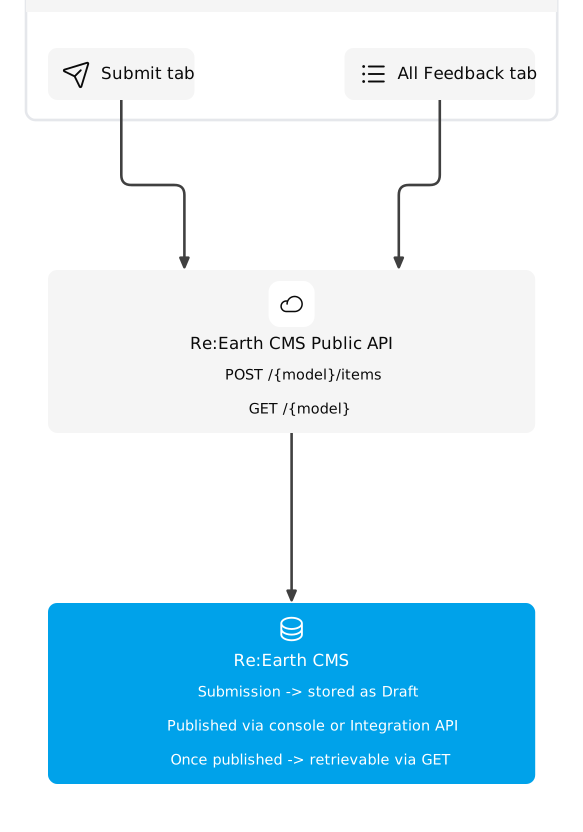
Section titled “What you’ll build”A backend-free, one-page app that accesses Re:Earth CMS’s Public API directly from the browser. You submit feedback from the Submit tab, and view published feedback from the All Feedback tab. Submitted data is stored in the CMS as a draft, and once published — from the management console or via Integration API — it appears in the browser’s list.
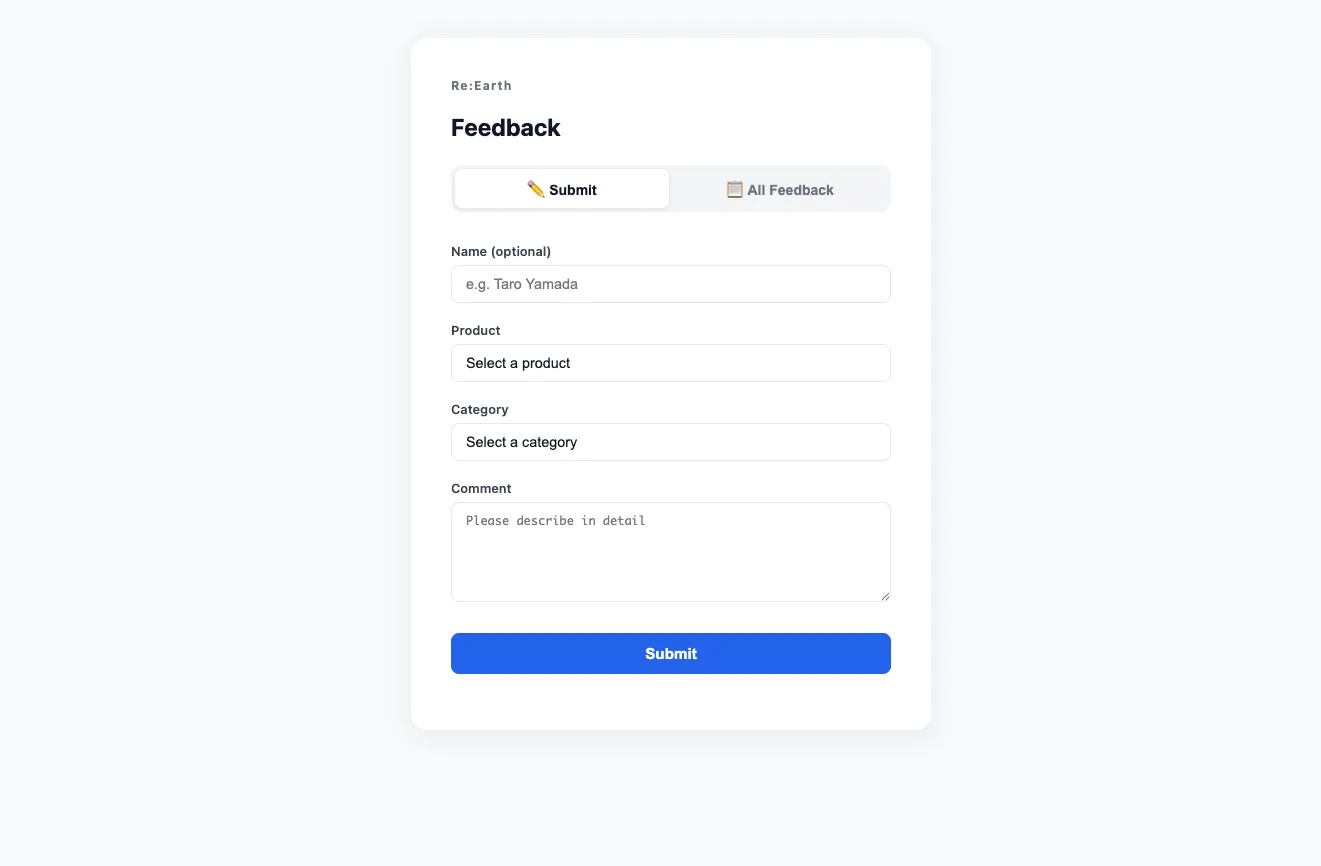
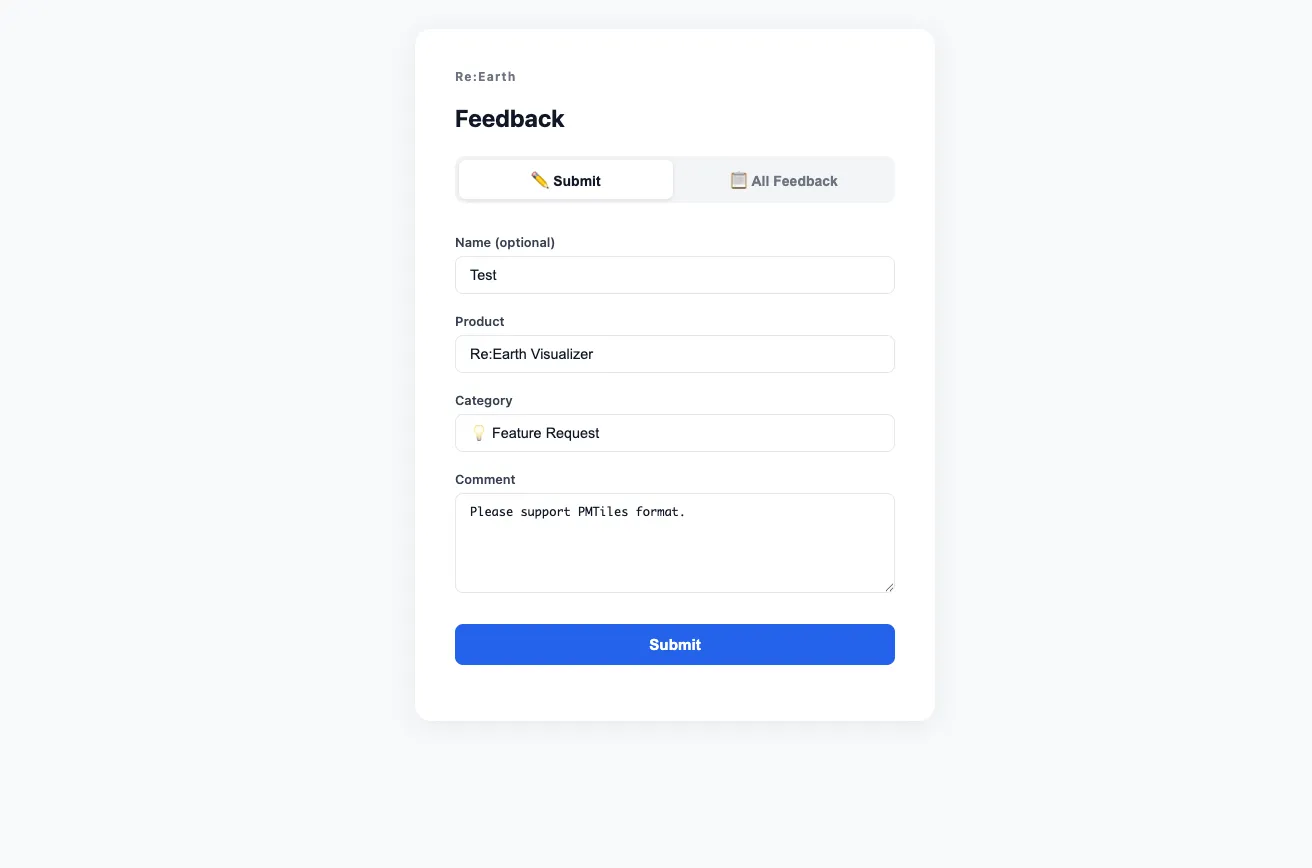
The Submit tab is a form for entering a name, product, category, and comment, and sending them as feedback.
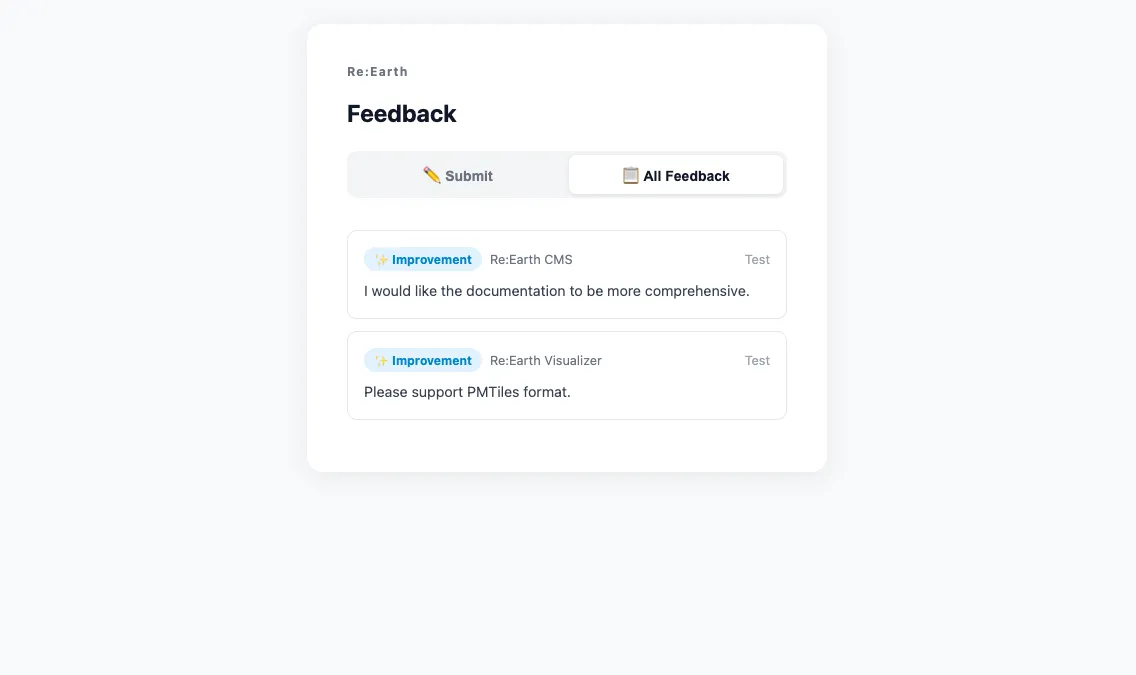
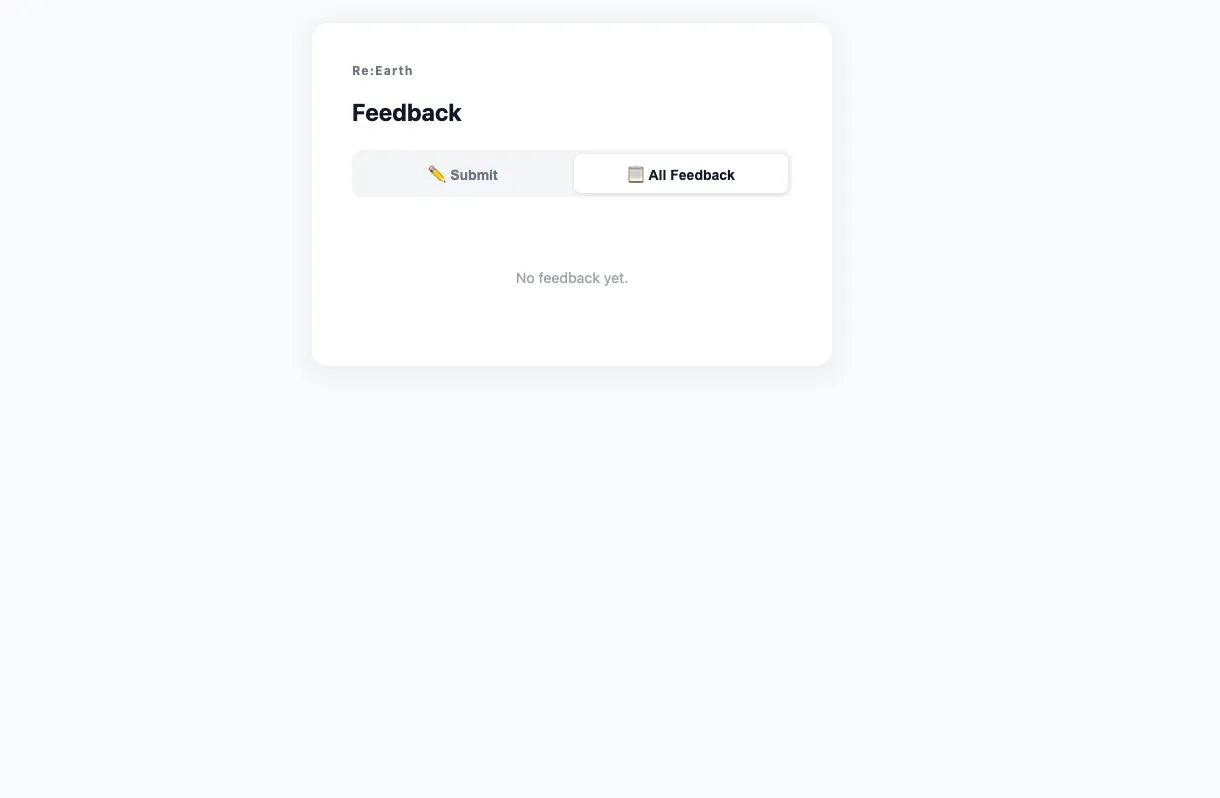
The All Feedback tab shows published feedback as a list of cards.
Prerequisites
Section titled “Prerequisites”- A Re:Earth CMS account and project
- A text editor and a browser
- Node.js installed (if you use Vite)
Step 1 — Create a model in the CMS
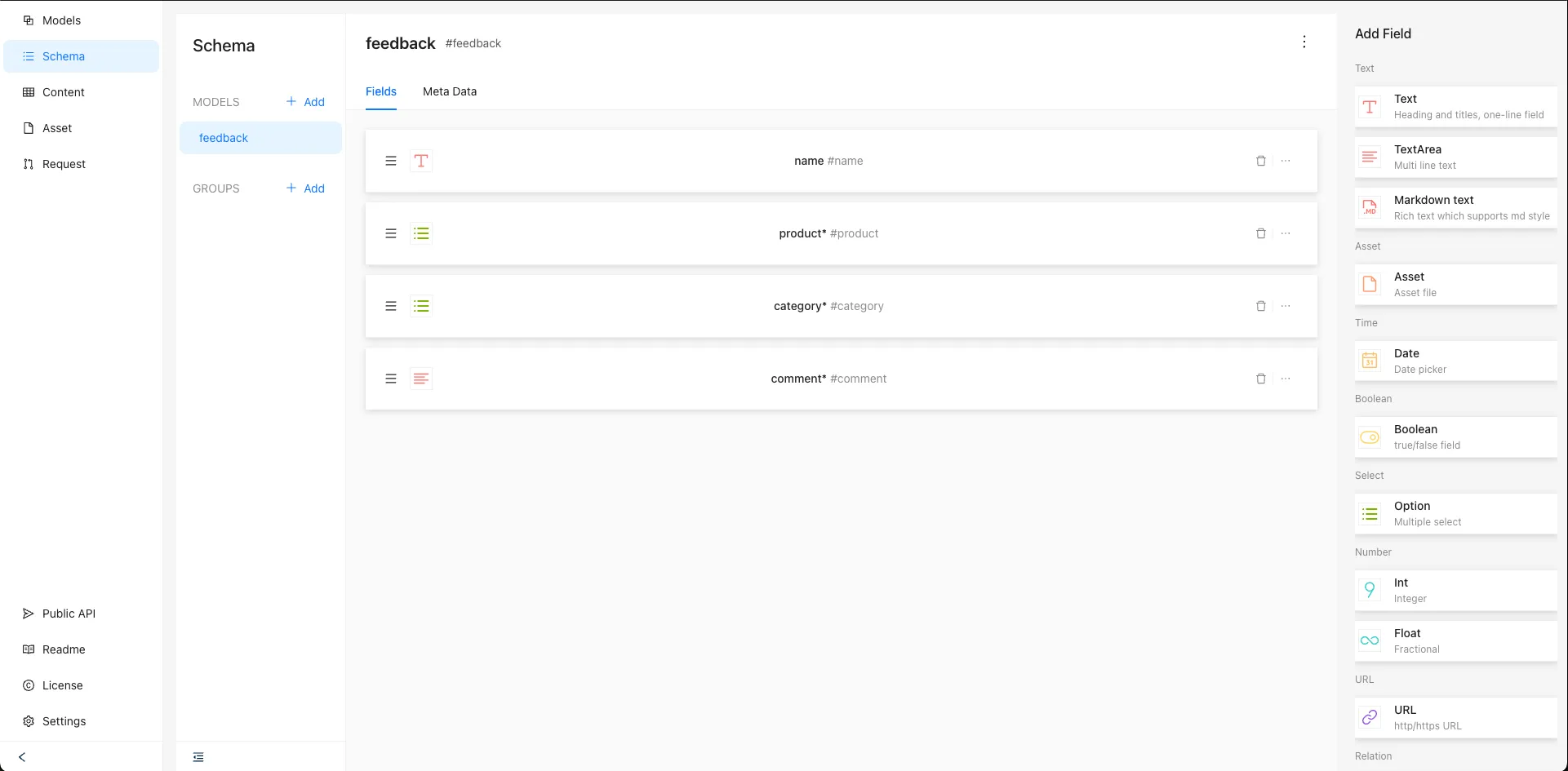
Section titled “Step 1 — Create a model in the CMS”In the Re:Earth CMS management console, create a model with the following fields.
| Field key | Field type | Options | Required |
|---|---|---|---|
name | Text | — | No |
product | Option | visualizer / cms / flow | Yes |
category | Option | bug / improvement / feature_request / other | Yes |
comment | TextArea | — | Yes |
Once the model is created, set up Public API.
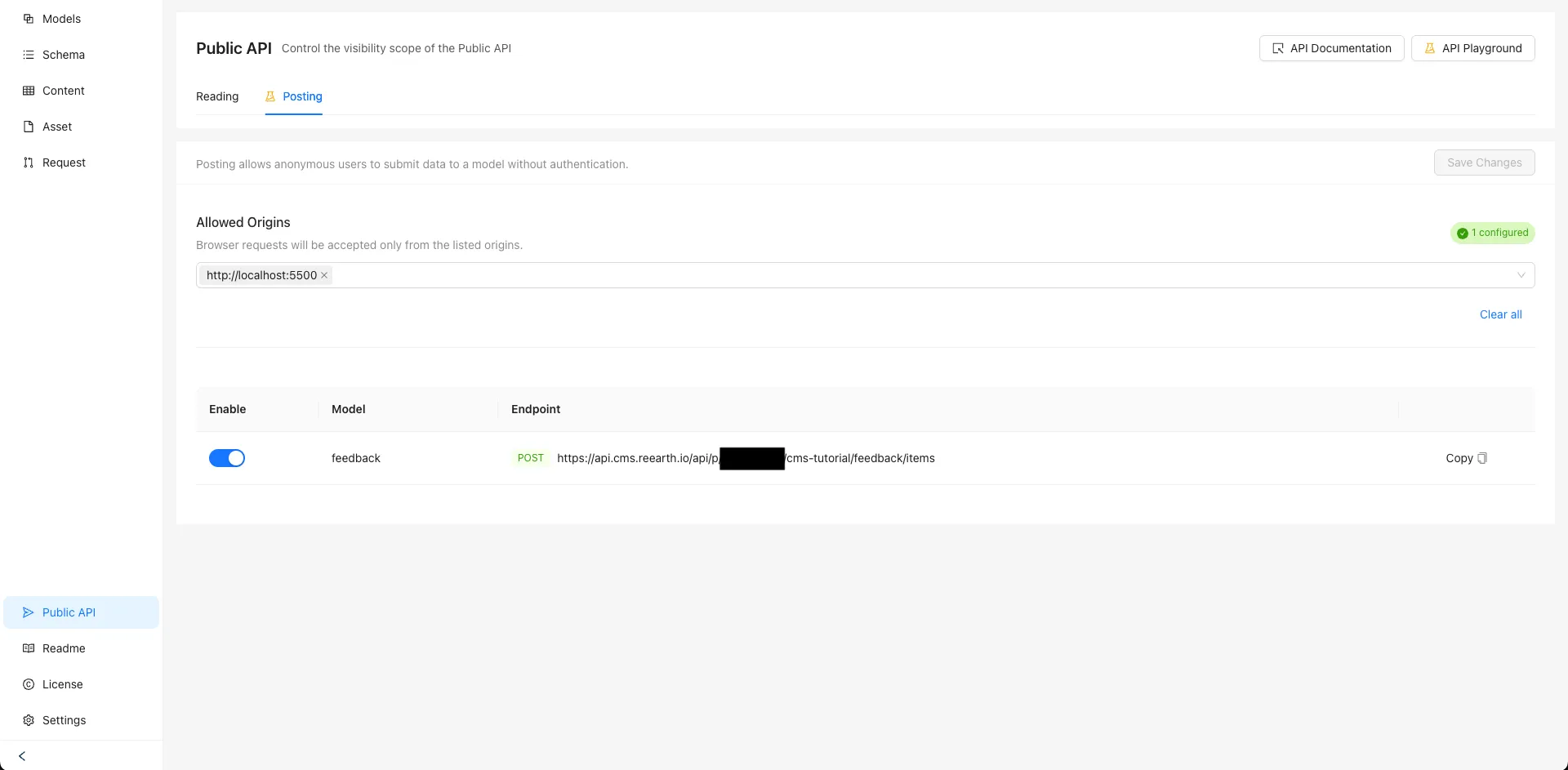
- If the project is private, enable Public API for the target model from Reading, then click Save Changes (not needed for a public project)
- From Posting, set the allowed origin to
http://localhost:5500/ - From Posting, enable Public API for the target model
- From Posting, click Save Changes
Once set up, the Posting tab of the Public API page looks like this.
For how to set up Public API, see the Reading and Writing pages.
Step 2 — Check the API with curl
Section titled “Step 2 — Check the API with curl”Before writing any code, let’s confirm the API works correctly using curl.
Replace <workspace>, <project>, and <model> with your actual values.
GET — Retrieve the list of published items
Section titled “GET — Retrieve the list of published items”Public API can be called from a browser or curl without authentication. Run the following command from a command-line tool and confirm you get a response.
curl 'https://api.cms.reearth.io/api/p/<workspace>/<project>/<model>'If you haven’t published any items yet, you’ll get JSON with an empty results array.
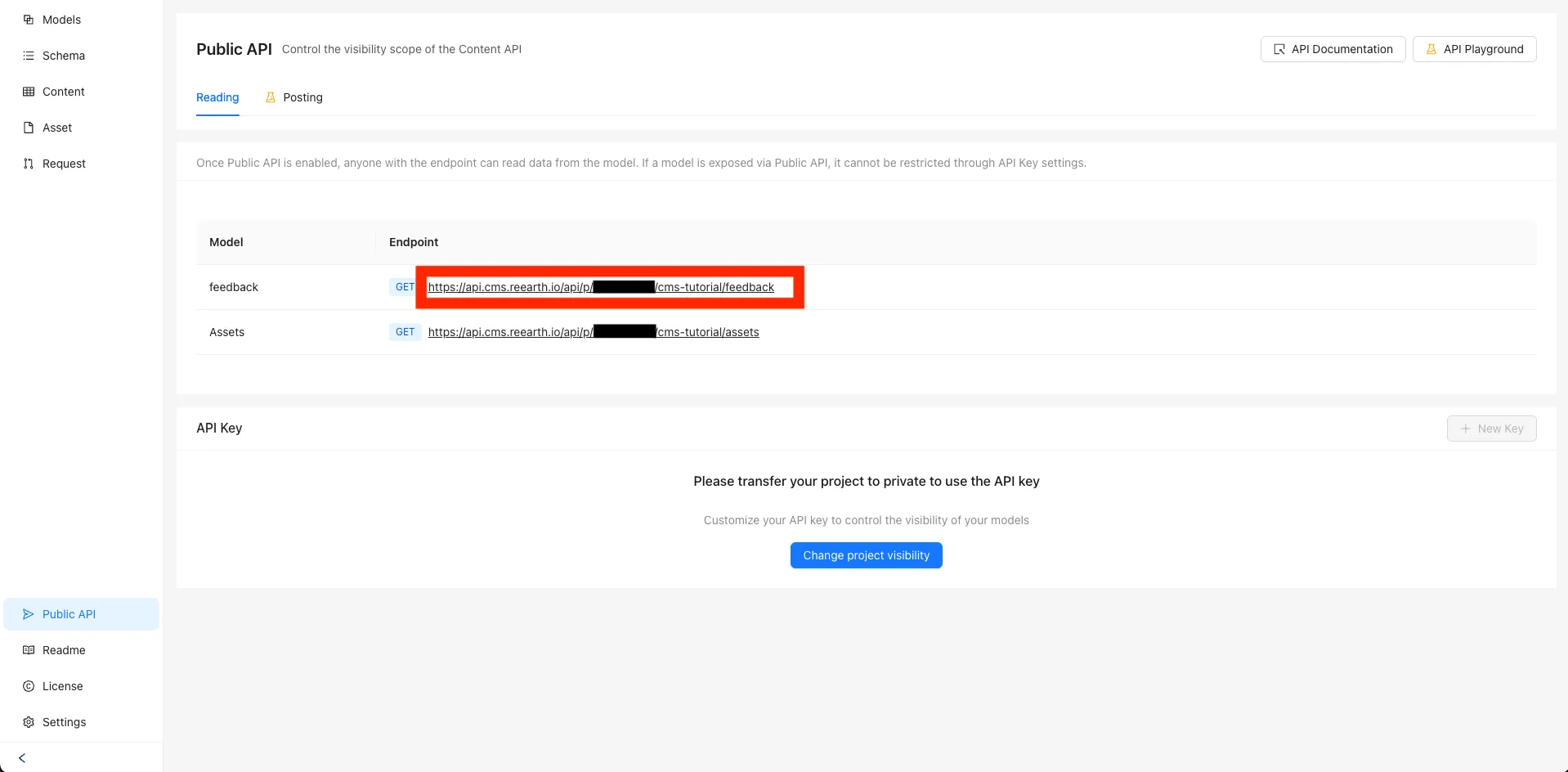
{ "results": [], "totalCount": 0 }You can get the same result by clicking the endpoint’s URL from Public API’s Reading tab.
POST — Submit feedback
Section titled “POST — Submit feedback”Next, let’s submit a piece of feedback. The keys and values in fields must match the CMS model’s definition.
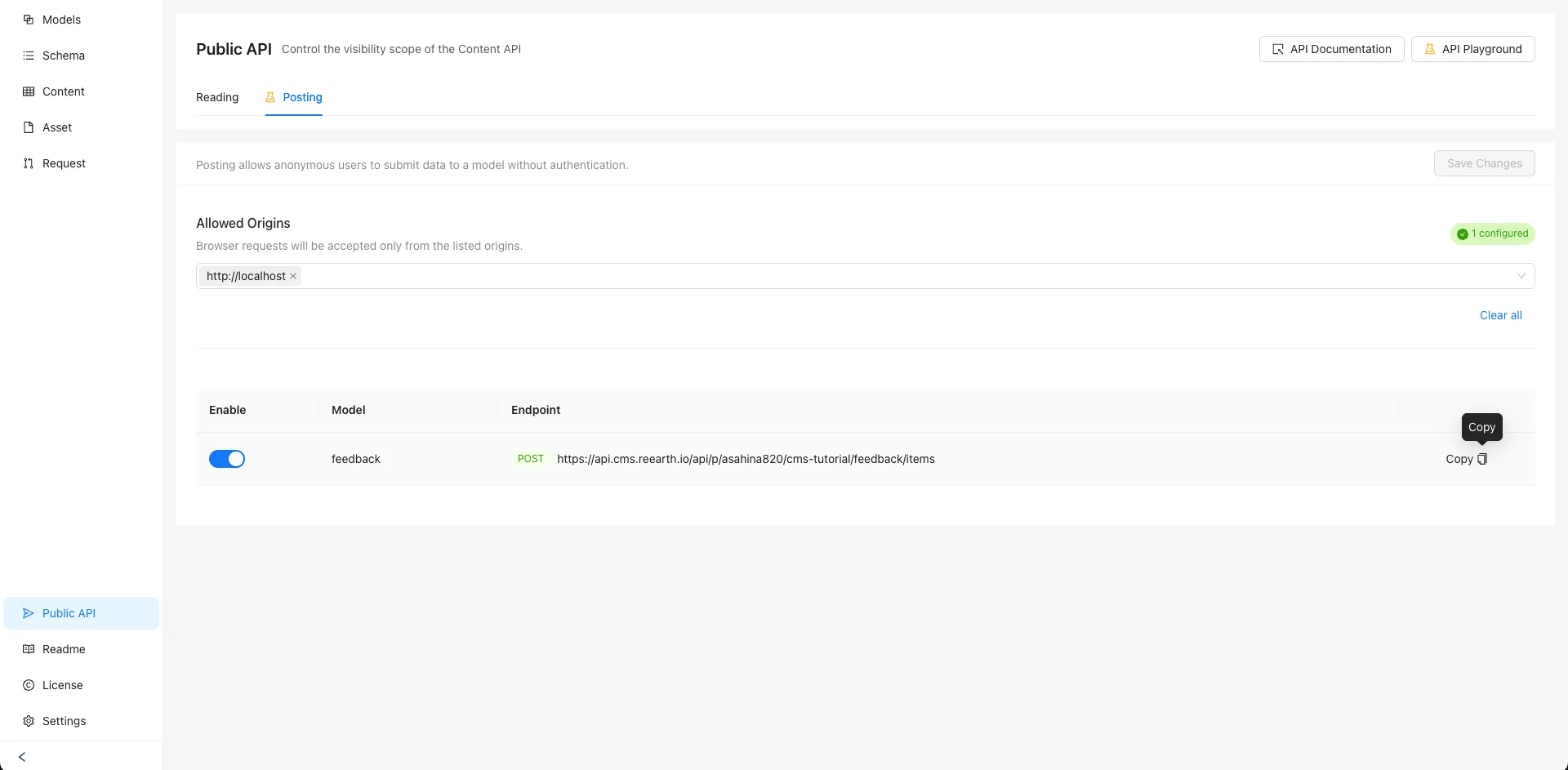
curl -X POST \ 'https://api.cms.reearth.io/api/p/<workspace>/<project>/<model>/items' \ -H 'Content-Type: application/json' \ -H 'Origin: http://localhost:5500' \ -d '{ "fields": { "name": "Test", "product": "cms", "category": "improvement", "comment": "I would like the documentation to be more comprehensive." } }'You can copy the curl request by clicking Copy next to the endpoint, from Public API’s Posting tab.
On success, the created item’s JSON is returned.
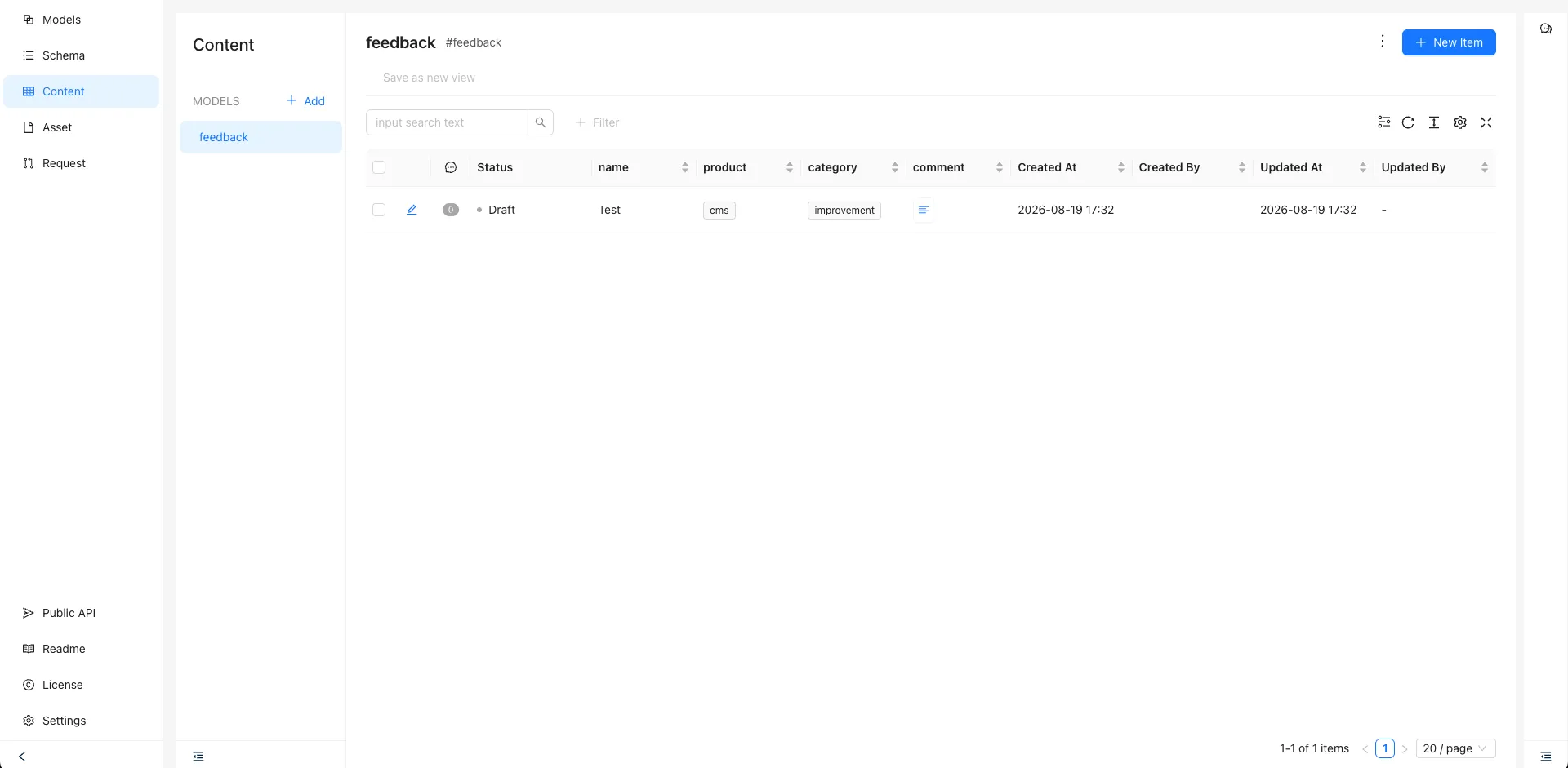
{ "id": "01m098...", "$createdAt": "2026-08-19T00:00:00.000Z", "fields": { "name": "Test", "product": "cms", "category": "improvement", "comment": "I would like the documentation to be more comprehensive." }}Because the submission has Draft status, it won’t appear in the list even if you GET it. Once you publish the item from the CMS management console, it becomes retrievable via Public API’s GET.
Step 3 — Create a working directory
Section titled “Step 3 — Create a working directory”Create a working directory and move into it.
mkdir feedback-appcd feedback-appYou’ll create three files inside this directory: index.html, style.css, and app.js.
Step 4 — Build the app
Section titled “Step 4 — Build the app”Now that you’ve confirmed the API works, let’s build the frontend app. It’s made up of three files: index.html, style.css, and app.js.
index.html
Section titled “index.html”This defines the HTML structure: the tab switcher, the submission form, and the list area.
<!doctype html><html lang="en">  <head>    <meta charset="utf-8" />    <title>Re:Earth Feedback</title>    <link rel="stylesheet" href="style.css" />  </head>  <body>    <div class="card">      <div class="logo">Re:Earth</div>      <h1>Feedback</h1>
      <div class="tabs">        <button class="tab active" data-tab="form">✏️ Submit</button>        <button class="tab" data-tab="list">📋 All Feedback</button>      </div>
      <div id="form-section" class="section active">        <form id="feedback-form">          <div class="field">            <label for="name">Name (optional)</label>            <input id="name" type="text" name="name" placeholder="e.g. Taro Yamada" />          </div>          <div class="field">            <label for="product">Product</label>            <select id="product" name="product" required>              <option value="">Select a product</option>              <option value="visualizer">Re:Earth Visualizer</option>              <option value="cms">Re:Earth CMS</option>              <option value="flow">Re:Earth Flow</option>            </select>          </div>          <div class="field">            <label for="category">Category</label>            <select id="category" name="category" required>              <option value="">Select a category</option>              <option value="bug">🐛 Bug Report</option>              <option value="improvement">✨ Improvement</option>              <option value="feature_request">💡 Feature Request</option>              <option value="other">💬 Other</option>            </select>          </div>          <div class="field">            <label for="comment">Comment</label>            <textarea id="comment" name="comment" placeholder="Please describe in detail" required></textarea>          </div>          <button type="submit" class="btn" id="submit-btn">Submit</button>        </form>        <p id="message"></p>      </div>
      <div id="list-section" class="section">        <div id="list-content" class="loading">Loading...</div>      </div>    </div>
    <script type="module" src="app.js"></script>  </body></html>
style.css
Section titled “style.css”This defines the styles.
*,*::before,*::after {  box-sizing: border-box;  margin: 0;  padding: 0;}
body {  font-family: "Inter", system-ui, sans-serif;  background: #f8f9fb;  min-height: 100vh;  display: flex;  align-items: flex-start;  justify-content: center;  padding: 40px 16px;}
.card {  background: #fff;  border-radius: 16px;  padding: 40px;  width: 100%;  max-width: 520px;  box-shadow: 0 4px 24px rgba(0, 0, 0, 0.07);}
.logo {  font-size: 0.75rem;  font-weight: 700;  letter-spacing: 0.1em;  color: #6b7280;  margin-bottom: 20px;}
h1 {  font-size: 1.5rem;  font-weight: 700;  color: #111827;  margin-bottom: 24px;}
.tabs {  display: flex;  gap: 4px;  background: #f3f4f6;  border-radius: 10px;  padding: 4px;  margin-bottom: 32px;}
.tab {  flex: 1;  padding: 8px;  border: none;  border-radius: 7px;  font-size: 0.875rem;  font-weight: 600;  cursor: pointer;  background: transparent;  color: #6b7280;  transition: all 0.15s;}
.tab.active {  background: #fff;  color: #111827;  box-shadow: 0 1px 4px rgba(0, 0, 0, 0.1);}
.field {  margin-bottom: 20px;}
label {  display: block;  font-size: 0.8rem;  font-weight: 600;  color: #374151;  margin-bottom: 6px;}
input,select,textarea {  width: 100%;  padding: 10px 14px;  border: 1.5px solid #e5e7eb;  border-radius: 8px;  font-size: 0.9rem;  color: #111827;  background: #fff;  transition: border-color 0.15s;  outline: none;  appearance: none;}
input:focus,select:focus,textarea:focus {  border-color: #2563eb;}
textarea {  resize: vertical;  min-height: 100px;}
.btn {  width: 100%;  margin-top: 8px;  padding: 12px;  background: #2563eb;  color: #fff;  border: none;  border-radius: 8px;  font-size: 0.95rem;  font-weight: 600;  cursor: pointer;  transition: background 0.15s;}
.btn:hover {  background: #1d4ed8;}
.btn:disabled {  background: #93c5fd;  cursor: not-allowed;}
#message {  margin-top: 16px;  font-size: 0.85rem;  text-align: center;  color: #6b7280;}
#message.success {  color: #16a34a;}
#message.error {  color: #dc2626;}
.feedback-item {  border: 1px solid #e5e7eb;  border-radius: 10px;  padding: 16px;  margin-bottom: 12px;}
.feedback-meta {  display: flex;  align-items: center;  gap: 8px;  margin-bottom: 8px;  flex-wrap: wrap;}
.tag {  font-size: 0.75rem;  font-weight: 700;  padding: 2px 10px;  border-radius: 99px;}
.tag-bug             { background: #fee2e2; color: #dc2626; }.tag-improvement     { background: #e0f2fe; color: #0284c7; }.tag-feature_request { background: #fef9c3; color: #ca8a04; }.tag-other           { background: #f3f4f6; color: #6b7280; }
.feedback-product {  font-size: 0.8rem;  color: #6b7280;}
.feedback-name {  font-size: 0.8rem;  color: #9ca3af;  margin-left: auto;}
.feedback-comment {  font-size: 0.9rem;  color: #374151;  line-height: 1.6;}
.empty,.loading {  text-align: center;  color: #9ca3af;  font-size: 0.9rem;  padding: 40px 0;}
.section {  display: none;}
.section.active {  display: block;}
app.js
Section titled “app.js”This handles the app’s logic: switching tabs, fetching the list, and submitting the form.
Replace <workspace>, <project>, and <model> with your actual values.
const WORKSPACE = "<workspace>";const PROJECT = "<project>";const MODEL = "<model>";const BASE = `https://api.cms.reearth.io/api/p/${WORKSPACE}/${PROJECT}/${MODEL}`;
const PRODUCT_LABEL = {  visualizer: "Re:Earth Visualizer",  cms: "Re:Earth CMS",  flow: "Re:Earth Flow",};
const CATEGORY_LABEL = {  bug: "🐛 Bug Report",  improvement: "✨ Improvement",  feature_request: "💡 Feature Request",  other: "💬 Other",};
// Tab switchingdocument.querySelectorAll(".tab").forEach((tab) => {  tab.addEventListener("click", () => {    document      .querySelectorAll(".tab")      .forEach((t) => t.classList.remove("active"));    document      .querySelectorAll(".section")      .forEach((s) => s.classList.remove("active"));    tab.classList.add("active");    document      .getElementById(`${tab.dataset.tab}-section`)      .classList.add("active");
    if (tab.dataset.tab === "list") {      loadList();    }  });});
// Load the listasync function loadList() {  const content = document.getElementById("list-content");  try {    const resp = await fetch(BASE);    if (!resp.ok) {      throw new Error(`Request failed (${resp.status})`);    }    const data = await resp.json();
    if (!data.results || data.results.length === 0) {      content.className = "empty";      content.textContent = "No feedback yet.";      return;    }
    content.className = "";    content.innerHTML = "";
    for (const item of data.results) {      const el = document.createElement("div");      el.className = "feedback-item";
      const meta = document.createElement("div");      meta.className = "feedback-meta";
      const tag = document.createElement("span");      tag.className = `tag tag-${item.category}`;      tag.textContent = CATEGORY_LABEL[item.category] ?? item.category;
      const product = document.createElement("span");      product.className = "feedback-product";      product.textContent = PRODUCT_LABEL[item.product] ?? item.product;
      const name = document.createElement("span");      name.className = "feedback-name";      name.textContent = item.name ?? "Anonymous";
      meta.append(tag, product, name);
      const comment = document.createElement("p");      comment.className = "feedback-comment";      comment.textContent = item.comment;
      el.append(meta, comment);      content.appendChild(el);    }  } catch (err) {    content.className = "empty";    content.textContent = "Failed to load feedback.";    console.error(err);  }}
// Submitconst message = document.getElementById("message");const btn = document.getElementById("submit-btn");
document  .getElementById("feedback-form")  .addEventListener("submit", async (e) => {    e.preventDefault();    btn.disabled = true;    message.className = "";    message.textContent = "Submitting...";
    const formData = new FormData(e.target);    const body = {      fields: {        name: formData.get("name") || undefined,        product: formData.get("product"),        category: formData.get("category"),        comment: formData.get("comment"),      },    };
    try {      const resp = await fetch(`${BASE}/items`, {        method: "POST",        headers: {          "Content-Type": "application/json",          Accept: "application/json",        },        body: JSON.stringify(body),      });
      btn.disabled = false;
      if (!resp.ok) {        const data = await resp.json().catch(() => ({}));        message.className = "error";        message.textContent = `Error: ${data.message ?? `Request failed (${resp.status})`}`;        return;      }
message.className = "success"; message.textContent = "Submitted! It will appear in the list once published in CMS."; e.target.reset(); } catch (err) { btn.disabled = false; message.className = "error"; message.textContent = "Failed to submit. "; console.error(err); } });Step 5 — Start the dev server
Section titled “Step 5 — Start the dev server”Once you have all three files, start a local server and check the app in your browser.
npx vite --port 5500Open http://localhost:5500 in your browser.
The Submit tab looks like this.
The All Feedback tab looks like this, since you haven’t submitted any feedback yet.
Step 6 — Verify it works
Section titled “Step 6 — Verify it works”Once the server is running, let’s verify everything works.
-
Open the app in your browser and submit feedback from the Submit tab
-
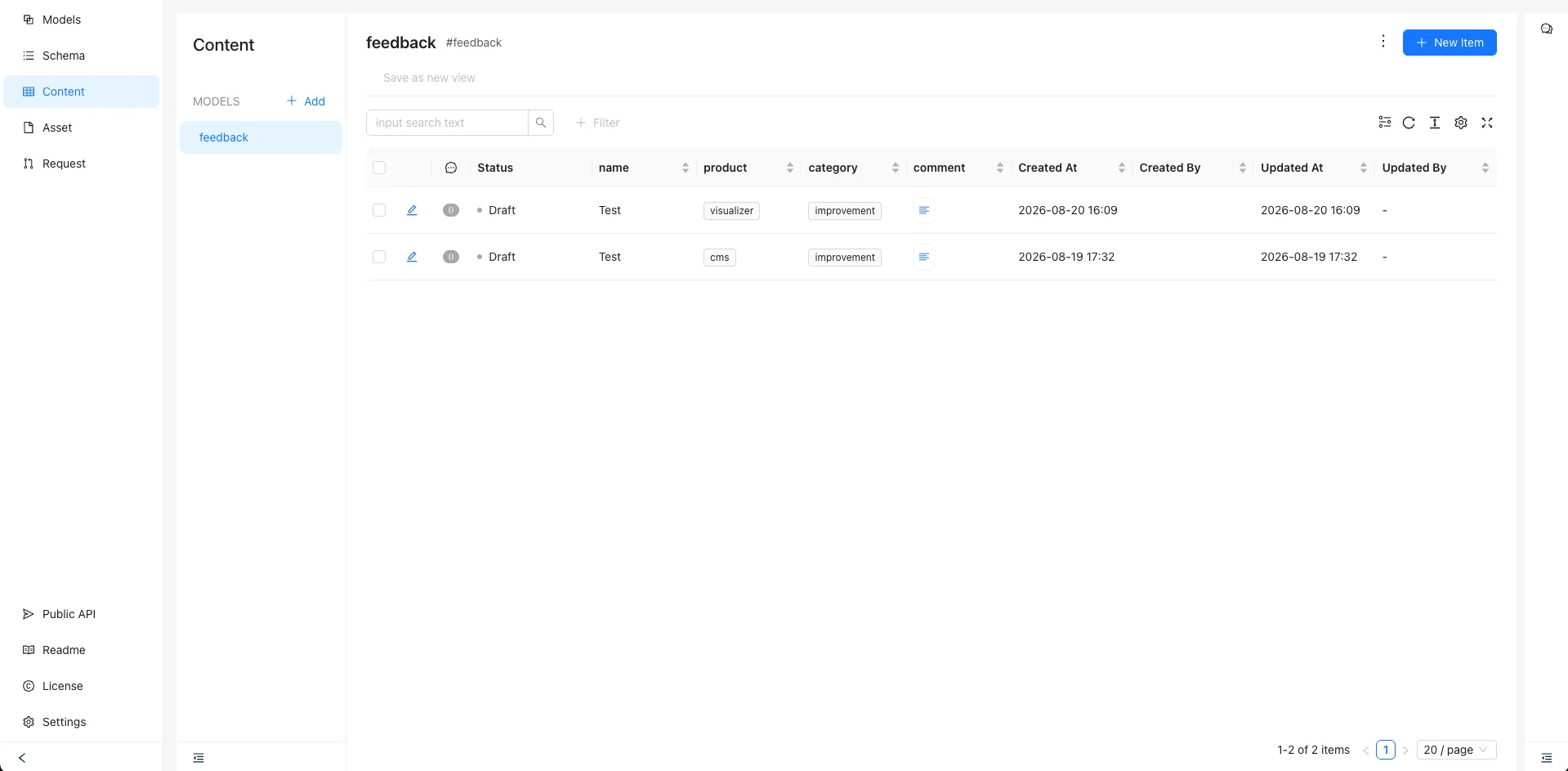
Open the Re:Earth CMS management console and check the item list for the model you created — confirm the submitted feedback is registered with Draft status
-
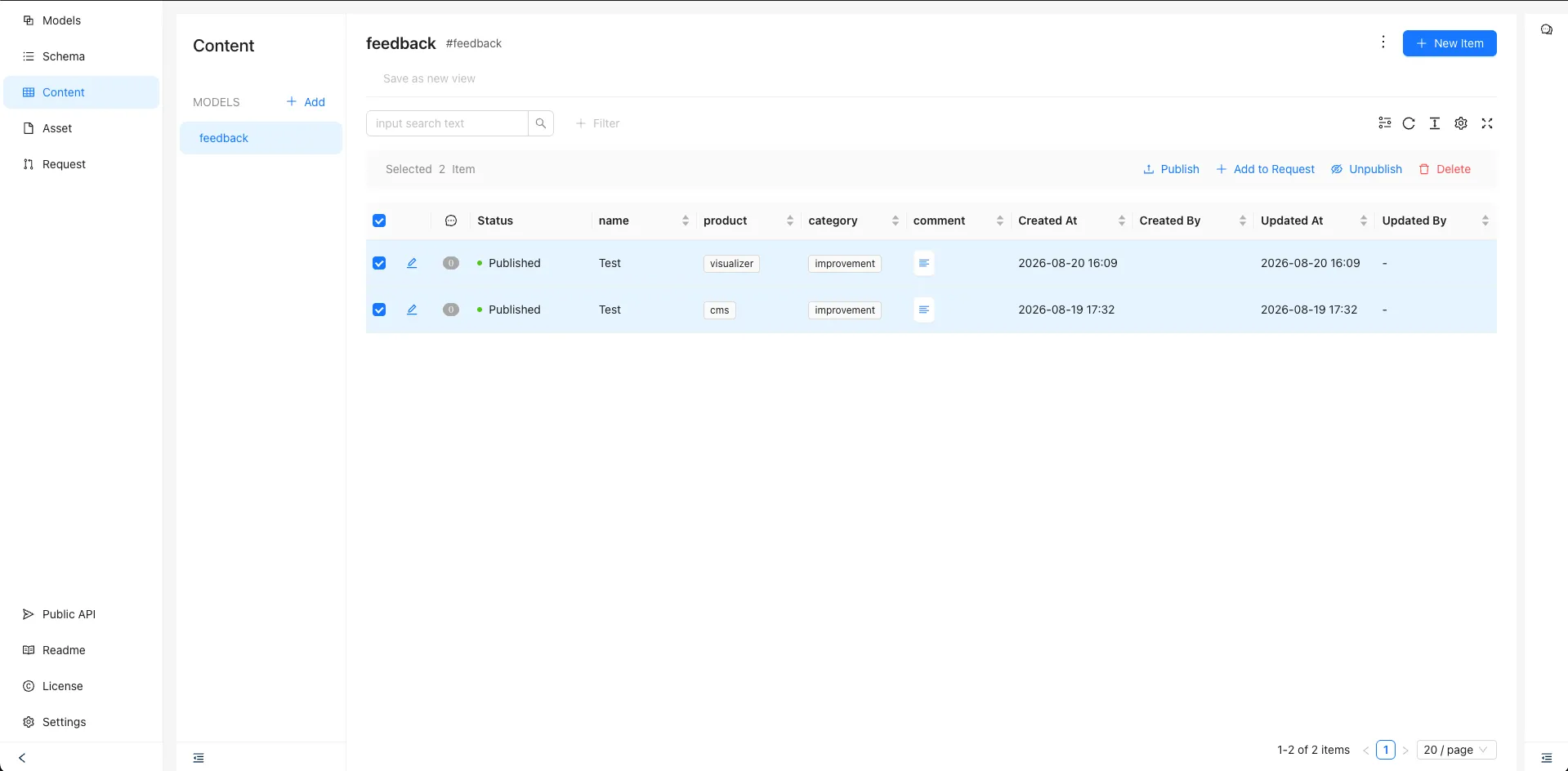
Select the items and click Publish to publish them
-
Back in the app, open the All Feedback tab — confirm the published feedback appears in the list
Troubleshooting
Section titled “Troubleshooting”Submitted feedback doesn’t appear in the list
Submitted feedback is stored with Draft status by default. Publishing the item from the CMS management console makes it appear in the list.
Submitting returns a 400 Bad Request
Check that the values of the product and category fields exactly match the options defined in the CMS model (for example, visualizer, not Visualizer).
Getting 429 Too Many Requests
Public API has a rate limit. This happens if you send a large number of requests in a short time. Wait a moment and try again.
The list shows “Failed to load feedback”
Check that Public API is enabled for the project, and that the model key in the URL is correct.
Completion checklist
Section titled “Completion checklist”- Feedback can be submitted from the Submit tab
- The submitted feedback appears as a Draft item on the CMS Content screen
- The item can be published from the CMS management console
- Published feedback appears in the All Feedback tab’s list