Build a local receiver for Re:Earth CMS webhooks
Last updated
Whenever an item or an asset changes in Re:Earth CMS, a Webhook can send that change to a server of your own as an HTTP POST. In this tutorial, you’ll run a small TypeScript server on your own machine that receives those requests, checks that each one really came from your CMS, and prints a readable summary of the change. Printing to the console is the starting point: at the end, you’ll design how your receiver should notify people.
What you’ll build
Section titled “What you’ll build”You edit an item in the CMS, and a few seconds later your terminal shows what changed, who changed it, and when:
[item.update] YYYY-MM-DD hh:mm:ss UTC model: webhook-test item: 01abc… changed: title: "draft" → "final" by: user 01xyz… event: 01def… received: YYYY-MM-DD hh:mm:ss UTCThe CMS can’t reach localhost, so a tunnel gives your machine a temporary public address and forwards each request to the receiver:
Re:Earth CMS ──POST + Reearth-Signature──► cloudflared tunnel ──► localhost:3000/webhook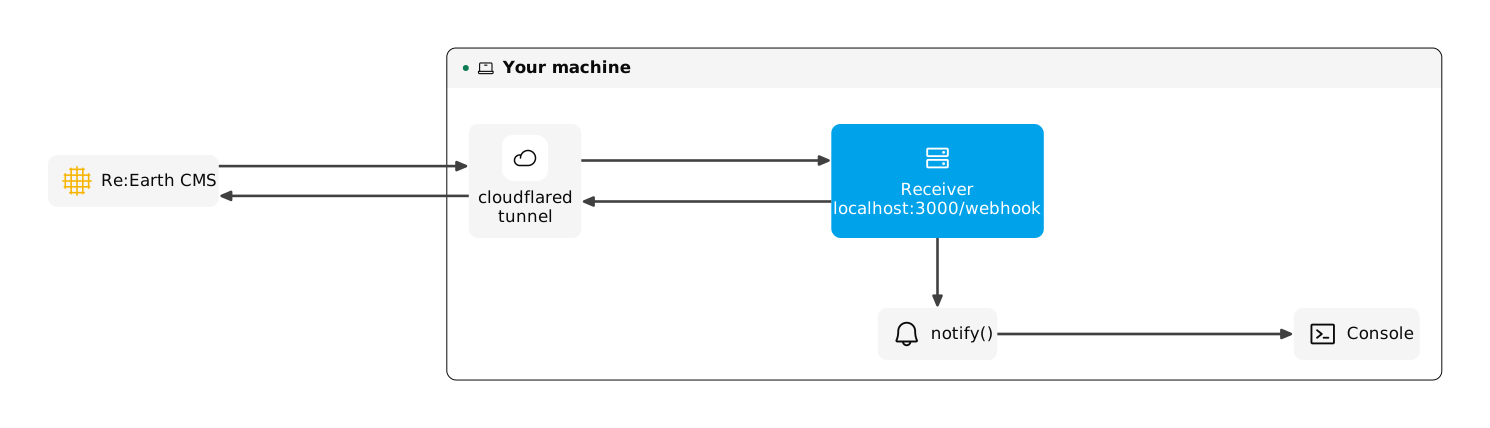
Compare your project with the finished source code.
Prerequisites
Section titled “Prerequisites”Before you start, make sure you have the following:
- Node.js 20.6 or later. The receiver loads its settings with Node’s built-in
--env-file, which needs this version. - Git
- A Re:Earth CMS workspace where you have the Owner or Maintainer role. Connecting an Integration to a workspace needs one of these roles. Your personal workspace works, because you’re its Owner.
- Basic familiarity with TypeScript
Step 1 — Set up the CMS
Section titled “Step 1 — Set up the CMS”A webhook belongs to an Integration, so you’ll create an Integration first, connect it to a workspace, and then create a small model to make changes in.
Create an Integration and connect it
Section titled “Create an Integration and connect it”Create the Integration in your personal account, then connect it to the workspace you’ll use:
- In your personal account, open the My Integrations tab.
- Click Create new integration.
- Enter
CMS Webhook Tutorialas the name. - Click Create.
- In the workspace you’ll use, open the Integrations tab.
- Click Connect Integration.
- Select
CMS Webhook Tutorial. - Click Connect.
The Integration now appears on the workspace’s Integrations screen. Any role works for this tutorial: the CMS sends webhook events to every connected Integration, whatever its role. For the full steps and the roles, see Creating an Integration.
You’ll add the webhook itself in Step 4, once the receiver has an address the CMS can reach.
Create a test project and model
Section titled “Create a test project and model”In the same workspace, create a project named webhook-tutorial-test. In it, create a model named webhook-test and add a Text field with the key title.
This model is where you’ll make the changes that produce events in Step 5.
Step 2 — Run the receiver on your machine
Section titled “Step 2 — Run the receiver on your machine”Clone the finished receiver and install its dependencies:
git clone https://github.com/eukarya-biz/cms-webhook-tutorial.gitcd cms-webhook-tutorialnpm installcp .env.example .envOn Windows (Command Prompt), use copy .env.example .env instead of cp .env.example .env.
The receiver needs a secret, a random value that both the CMS and your receiver know. Generate one:
node -e "console.log(require('crypto').randomBytes(32).toString('hex'))"Open .env and set CMS_WEBHOOK_SECRET to the value it printed. Leave PORT at 3000 and CMS_PROJECT_ID empty. Keep the secret to hand: you’ll enter the same value in the CMS in Step 4.
Before involving the CMS, check that the signature check works. The repository includes tests for it:
npm testAll 8 tests pass. They confirm that a correctly signed request is accepted, and that a changed body, a different secret, a timestamp more than 5 minutes off, and a malformed header are all rejected.
Now start the receiver:
npm run devThe terminal shows CMS Webhook Receiver listening on http://localhost:3000. Leave it running, open a second terminal in the same folder, and send a test event. The repository’s test script signs a sample event with your secret, the same way the CMS does:
npm run send-testThe second terminal shows Sent item.create (test-…) → 200, and the first one prints your first summary:
[item.create] YYYY-MM-DD hh:mm:ss UTC model: webhook-test item: test-item field: title = "hello from the test script" by: user test-user event: test-… received: YYYY-MM-DD hh:mm:ss UTCYour receiver accepts a correctly signed request. Next, you’ll see what it does with one before it prints anything.
Step 3 — See how the receiver checks a request
Section titled “Step 3 — See how the receiver checks a request”Every request arrives at POST /webhook in src/server.ts. Here’s how the receiver reads it:
app.post(  "/webhook",  express.raw({ type: () => true, limit: "1mb" }),  (req, res) => {    const rawBody = Buffer.isBuffer(req.body) ? req.body : Buffer.alloc(0);
    const result = verifySignature(      rawBody,      req.get("Reearth-Signature"),      secret,    );    if (!result.ok) {      console.warn(`Rejected webhook: ${result.reason}`);      res.sendStatus(401);      return;    }    // Then: parse the JSON, reply 200, and handle the event.  },);
Two details here matter more than they look.
The body is read as raw bytes. The CMS signs the exact bytes it sends, so the receiver has to check the signature against those bytes before parsing anything. The CMS also sends no Content-Type header, and that’s why the parser is given type: () => true. With the more common type: "*/*", Express reads a body only when a Content-Type header is present. Every request from the CMS would then arrive with an empty body, and every signature check would fail.
The signature is in the Reearth-Signature header. It looks like v1,t=<unix_time>,<signature>: a version, the time the CMS sent the request in seconds since 1970, and the signature itself. src/verify.ts recalculates the signature with your secret and compares the two:
// Earlier in verifySignature: the header is split into `timestamp` and// `signature`, and a timestamp more than 5 minutes off is rejected.const expected = createHmac("sha256", secret)  .update(`v1:${timestamp}:`)  .update(rawBody)  .digest("hex");
// timingSafeEqual throws if the lengths differ, so check that first.const received = Buffer.from(signature);const computed = Buffer.from(expected);if (  received.length !== computed.length ||  !timingSafeEqual(received, computed)) {  return { ok: false, reason: "signature mismatch" };}
The signature is an HMAC-SHA256 of v1:, the timestamp, :, and then the body, keyed with your secret. Only someone who has the secret can produce a matching one, so a match tells you the request came from your CMS and wasn’t changed on the way. Before this comparison, verifySignature also rejects a timestamp more than 5 minutes away from the current time, so a request someone recorded can’t be replayed later.
Once the request is verified, the receiver replies 200 straight away and only then handles the event. The CMS waits at most 30 seconds for a reply and treats any status above 300 as a failed delivery, so slow work never goes before the reply.
The handling itself, in handleEvent(), skips an event it has already seen and event types it doesn’t handle, then passes the event to notify() in src/notify.ts. That’s the function that printed your summary, and it’s the one you’ll come back to in Step 6.
Step 4 — Connect the CMS through a tunnel
Section titled “Step 4 — Connect the CMS through a tunnel”The CMS runs on the internet and can’t reach localhost. A Cloudflare quick tunnel gives your machine a temporary public address and forwards every request to it unchanged, which the signature check depends on. It’s free and needs no Cloudflare account.
Install cloudflared for your operating system. Then, with the receiver still running, start a tunnel in a new terminal:
cloudflared tunnel --url http://localhost:3000After a few seconds, it prints a box containing an address that ends in trycloudflare.com. Copy that address, and leave this terminal running: closing it ends the tunnel, and the address changes every time cloudflared starts.
Check that requests from the internet reach your receiver, and that unsigned ones are turned away. Run this, replacing <tunnel_url> with the whole address you copied:
curl -i -X POST <tunnel_url>/webhook --data '{"hello":"world"}'The response is 401 Unauthorized, and the receiver’s terminal shows Rejected webhook: missing Reearth-Signature header.
Now give the CMS that address. In My Integrations, open the CMS Webhook Tutorial Integration, open its Webhook tab, and click New Webhook.
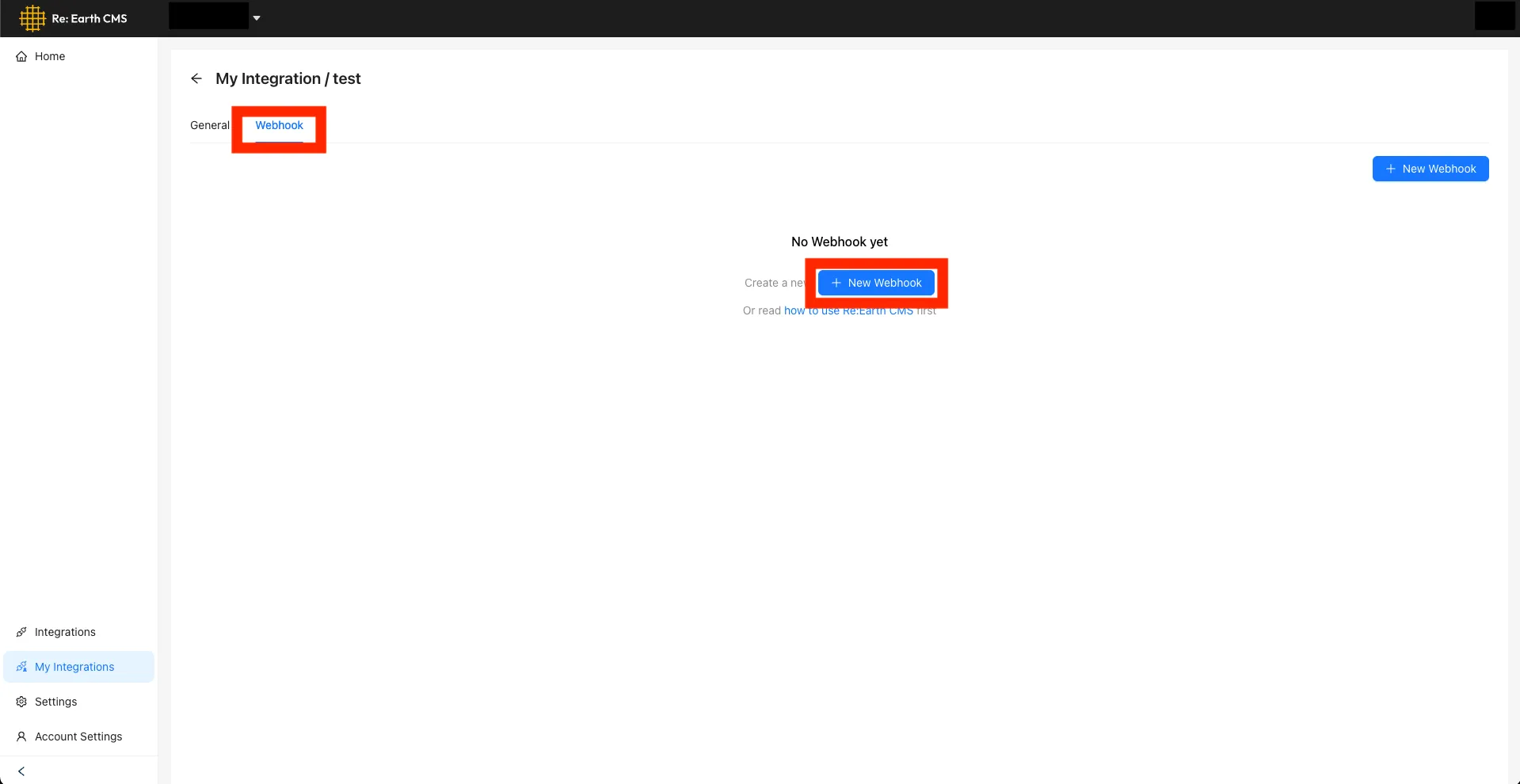
Fill in the form:
- Name:
local-receiver - URL: your tunnel address followed by
/webhook, that is,<tunnel_url>/webhook - Secret: the same value as
CMS_WEBHOOK_SECRETin your.env - Trigger Event: every Item and Asset event
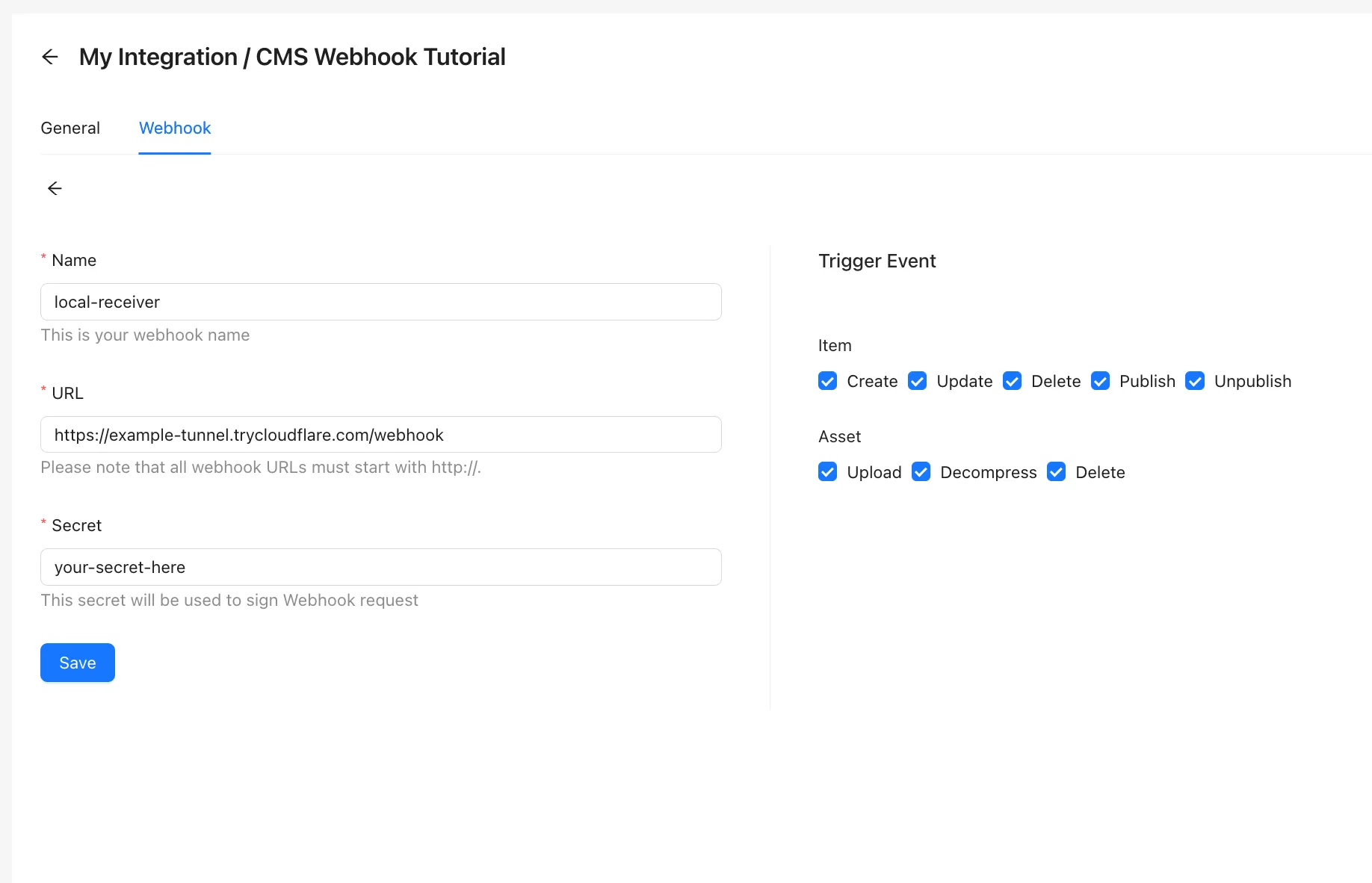
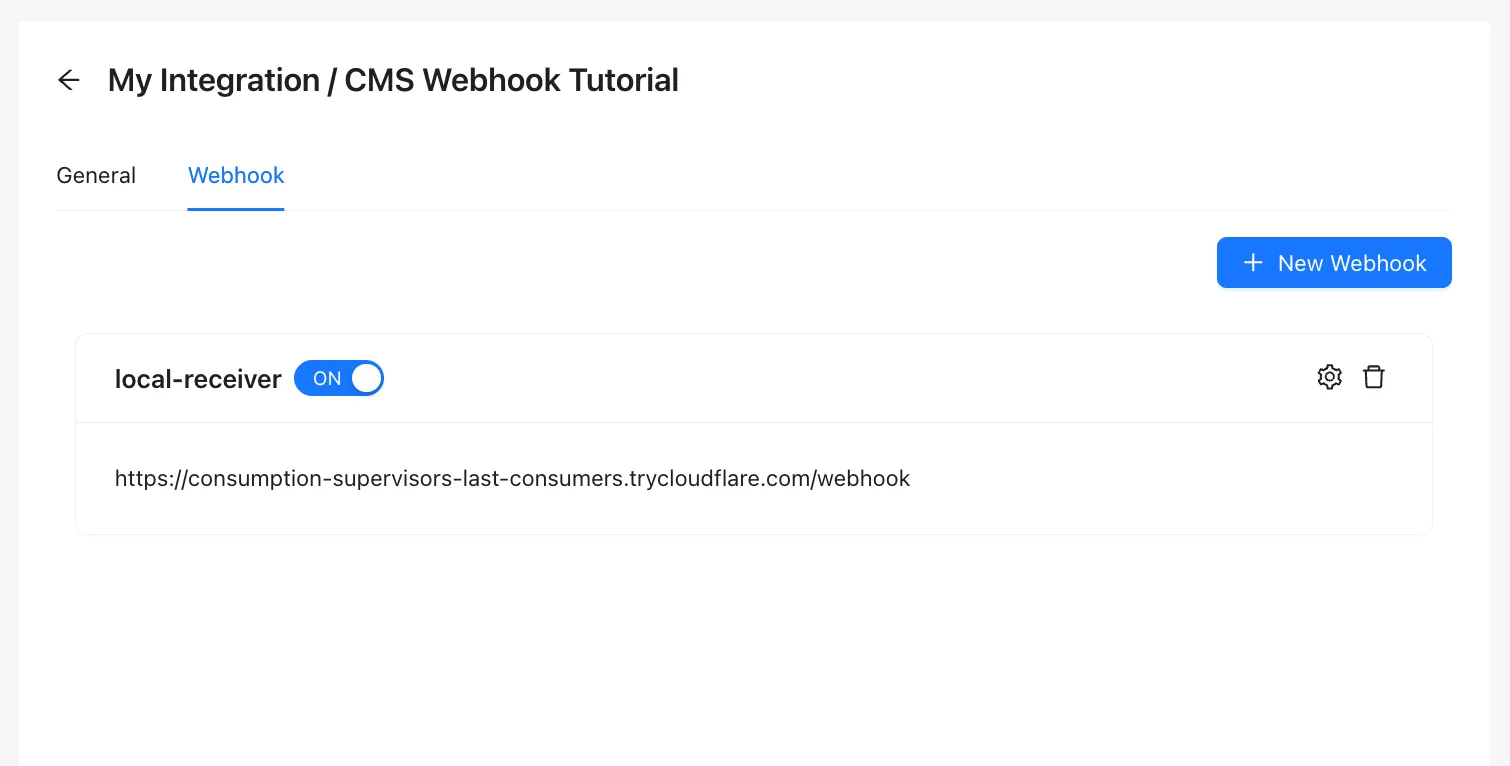
Click Save, and check that the new webhook’s switch is set to ON.
Step 5 — Watch real events arrive
Section titled “Step 5 — Watch real events arrive”Keep the receiver’s terminal where you can see it. In the webhook-tutorial-test project, make these changes one at a time, and watch the terminal after each one:
- In the
webhook-testmodel, create an item with the titledraft. An[item.create]summary appears, with afield:line showingtitle = "draft". - Change the title to
finaland save. An[item.update]summary appears, and itschanged:line shows both values:title: "draft" → "final". - Publish the item. An
[item.publish]summary appears. - Unpublish the item. An
[item.unpublish]summary appears. - Upload a small image to the project’s assets. An
[asset.create]summary appears, with the file name and its size.
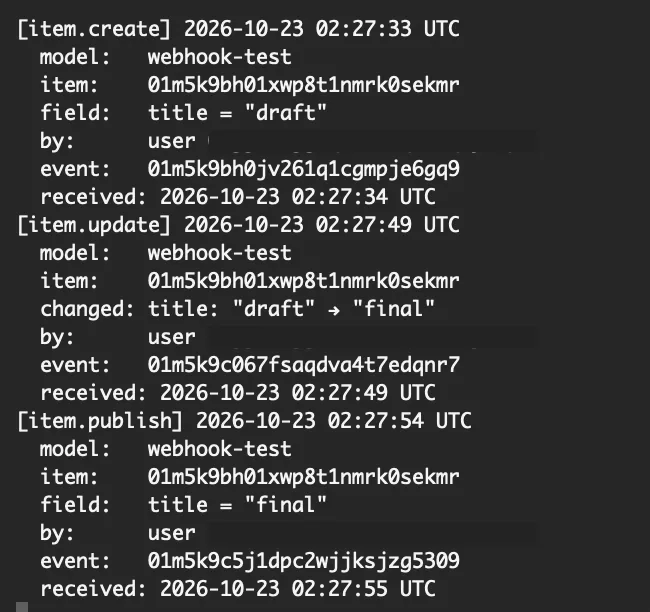
Each summary appears within a couple of seconds of the change. Compare the first line’s time with received:: the first is when the change happened in the CMS, and the second is when your receiver got it.
You’ll also notice a few things about which events arrive:
- Every save is a separate event. Save an item twice and two
item.updatesummaries arrive. - Deleting an item or an asset in the CMS doesn’t send an event. The CMS sends
item.deletewhen a whole model is deleted, once for each item in it, andasset.deletewhen an asset is deleted through the Integration API. - A delivery that fails is sent again later. If your receiver was stopped or rejected a request, the same event can arrive a while afterwards, after newer ones. The receiver skips an event ID it has already handled and doesn’t rely on the order.
When you finish working, switch the webhook to OFF. Once the tunnel stops, its address no longer works, and every change in the workspace would become a failed delivery that the CMS may send again later. Next time, start the tunnel, enter its new address in the webhook’s settings, and switch it back on.
Step 6 — Design your own notification
Section titled “Step 6 — Design your own notification”Printing to the console proves the whole path works. A real receiver would tell someone. This step doesn’t prescribe a design: you decide what your receiver should do, and how you’ll know it’s working.
The place to change is notify() in src/notify.ts. It’s called once for every verified event that passed the filters, and it can be async, so it can wait for another service to respond:
export async function notify(event: WebhookEvent): Promise<void> { console.log(formatEvent(event));}Before you write code, work through these questions:
- Who needs to know, and about which events? A reviewer might care only about
item.publishin one model, and an editor aboutitem.update.event.type,event.data.model.key, and the item’s fields are all in the event. - When should they hear about it? Straight away, or collected into one message every hour? A burst of saves on one item can produce a burst of events.
- What happens if sending fails? The receiver has already replied
200, so the CMS won’t send the event again. Decide whether to retry, to log it, or to accept that it’s lost. - Where do the credentials go? A Slack webhook URL or an email password is a secret too. Keep it in
.envbesideCMS_WEBHOOK_SECRET, never in the code. - How will you test it without the CMS?
npm run send-testaccepts--type,--id, and--project, so you can send the events your design cares about.
These official guides are good starting points for two common destinations:
- Slack: Sending messages using incoming webhooks
- Email from Node.js: Nodemailer
Decide what “done” means for your design before you start, in terms you can check. For example: “publishing an item in the webhook-test model posts one Slack message naming the item, and a failed post is written to the log”. Then check your receiver against it.
Troubleshooting
Section titled “Troubleshooting”The receiver shows Rejected webhook: signature mismatch
The webhook’s Secret and CMS_WEBHOOK_SECRET in .env don’t match exactly. Check both for extra spaces or missing characters. If you edited .env while the receiver was running, stop it and run npm run dev again: the receiver reads .env only when it starts.
Nothing appears when you change an item
Check that the webhook’s switch is ON, that its URL ends in /webhook, that the events you’re triggering are selected, and that the Integration is connected to the workspace you’re working in.
The tunnel’s terminal shows Unable to reach the origin service
The tunnel is running, but the receiver isn’t. Start it again with npm run dev.
The receiver shows Ignored … from another project
CMS_PROJECT_ID in .env is set to a different project. Leave it empty to accept events from every project in the workspace.
Completion checklist
Section titled “Completion checklist”- An unsigned request to your tunnel address is rejected with
401. - Creating, editing, publishing, and unpublishing an item in the CMS each prints a summary in your terminal.
- You can explain why the receiver reads the body as raw bytes and replies before handling the event.
- You’ve decided what your notification should do, and what “done” means for it.