Display UI
Last updated
By the end of this guide, you will be able to render a custom user interface for your Plugin inside Re:Earth Visualizer. This guide assumes you are familiar with the basic Plugin structure of reearth.yml and an extension file.
A Plugin displays its UI by passing HTML to reearth.ui.show. Re:Earth Visualizer renders that HTML inside an iframe, which behaves like a normal web page—so you can use standard HTML, CSS, and JavaScript to build whatever interface you need.
Sample code
Section titled “Sample code”This example renders a panel with a heading and a styled box.
reearth.yml
id: ui-demo-pluginname: UI Demo Pluginversion: 1.0.0extensions: - id: ui-demo type: widget name: UI Demoui-demo.js
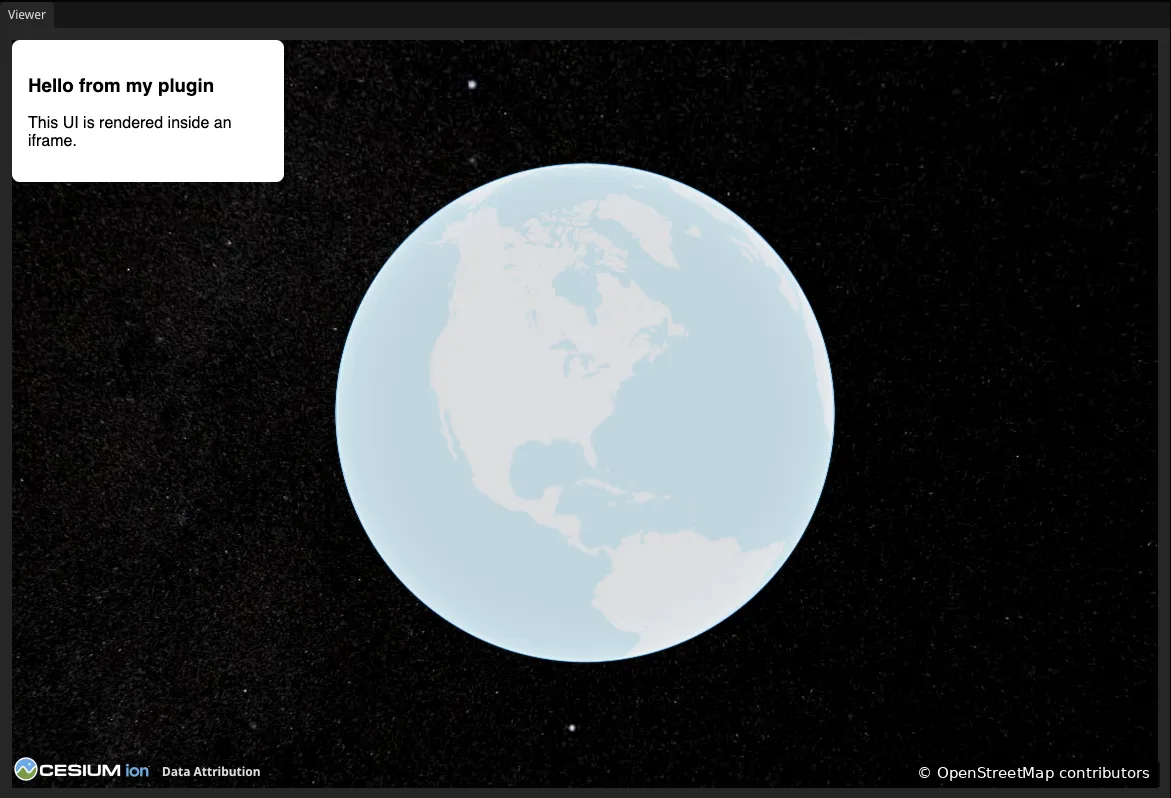
reearth.ui.show(` <style> html, body { margin: 0; } #panel { width: 240px; padding: 16px; font-family: sans-serif; background: #ffffff; border-radius: 8px; } </style> <div id="panel"> <h3>Hello from my plugin</h3> <p>This UI is rendered inside an iframe.</p> </div>`);Result
Section titled “Result”When you add this widget to a scene, the panel appears in the main view.
How it works
Section titled “How it works”reearth.ui.show renders your HTML
You pass your interface to reearth.ui.show as an HTML string. Everything the UI needs—markup, styles, and any scripts—goes inside this string:
reearth.ui.show(`<div>...</div>`);The HTML runs in an iframe, so it is isolated from Re:Earth Visualizer’s own page. This means your styles don’t clash with Visualizer’s, and you have a clean page to work with.
Set the size with CSS
The iframe sizes itself to your content. Set the dimensions of your UI using CSS on your root element, as the sample does with width: 240px. Using margin: 0 on html, body removes the default browser margin so your UI sits flush.
What’s next
Section titled “What’s next”- reearth.ui API reference:
show,resize,close, and the full list of display options - Accept user-configurable properties: make your UI configurable from the Inspector